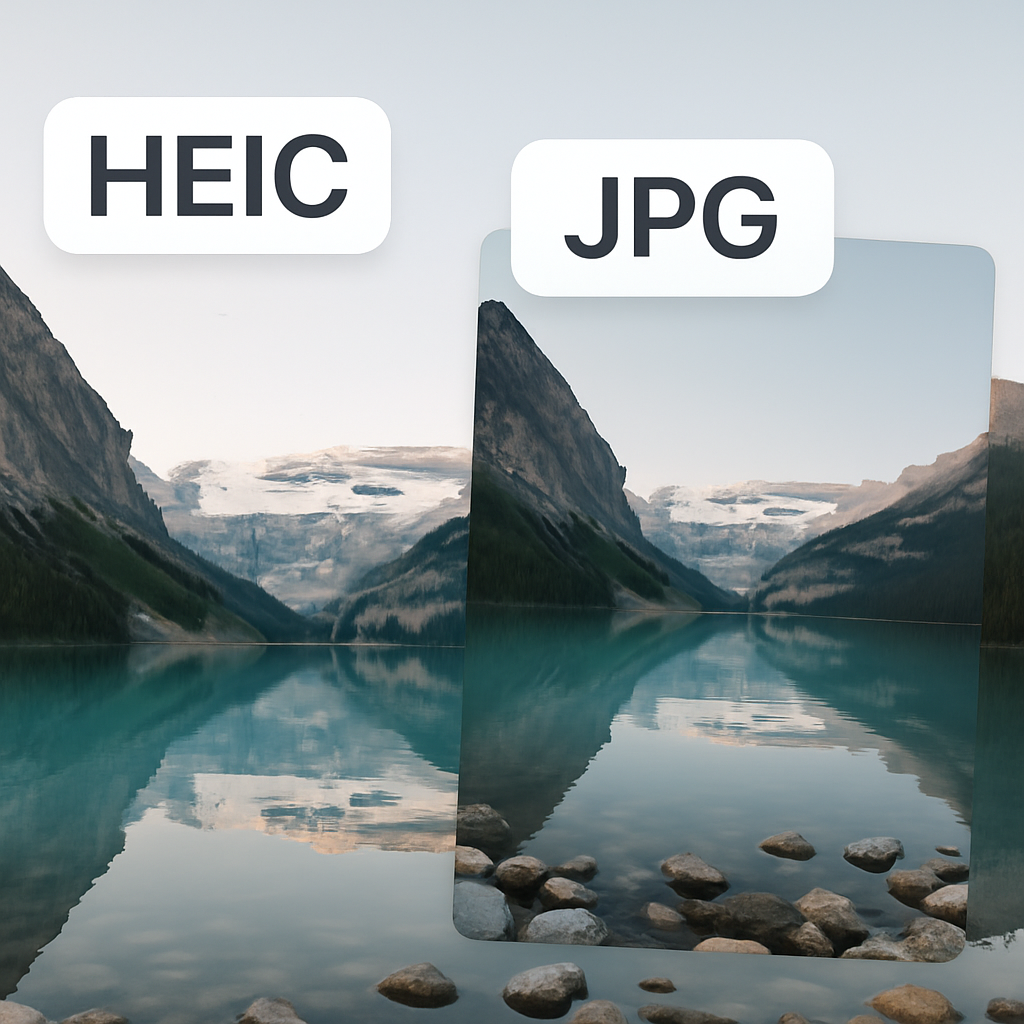
Imagine you just took a stunning photo on your iPhone. You love how it looks, but when you try to share it on your computer, you run into a problem. The photo is saved in HEIC format, and you're not sure if converting it to JPG will ruin that beautiful image. This post will help you understand HEIC quality versus JPG and answer the burning question: does converting HEIC lose quality?
What is HEIC?
HEIC stands for High Efficiency Image Container. It's a format that saves photos in a way that keeps them looking great but uses less space on your device. Think of it like packing a suitcase. HEIC is like a suitcase that holds a lot of clothes without being too bulky. This means you can store more photos without running out of space on your phone.
What is JPG?
JPG, or JPEG, is one of the most common image formats. It's like the tried-and-true suitcase that everyone uses. JPG files are typically larger than HEIC files, but they are also widely accepted by almost all devices and software. However, when you save a photo as JPG, it may lose some detail because it compresses the image to save space. Think of JPG as a suitcase that can hold a lot, but you might have to leave some clothes behind to fit everything.
HEIC vs JPG: The Quality Debate
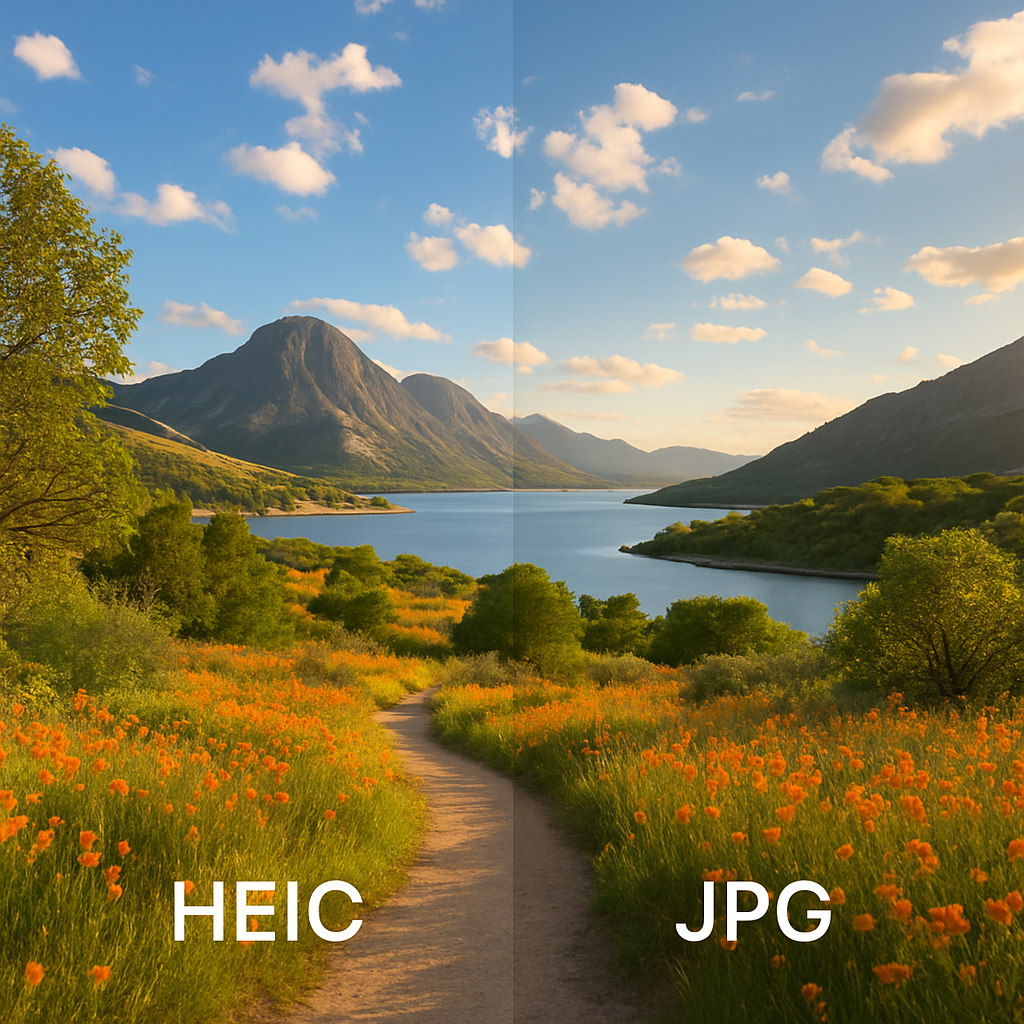
When you convert a HEIC file to JPG, you might worry about losing quality. Here’s the good news: HEIC images often have better quality than JPGs. This is because HEIC uses advanced compression methods that keep more detail in the image. However, if you convert a HEIC file to JPG, the quality can drop if the conversion settings are not set right. You can control things like quality and file size during the conversion. So, it’s possible to have a decent JPG, but it may not match the original HEIC quality.
How to Convert HEIC to JPG Without Losing Quality
If you want to convert your HEIC images to JPG but don’t want to lose quality, here are some easy steps:
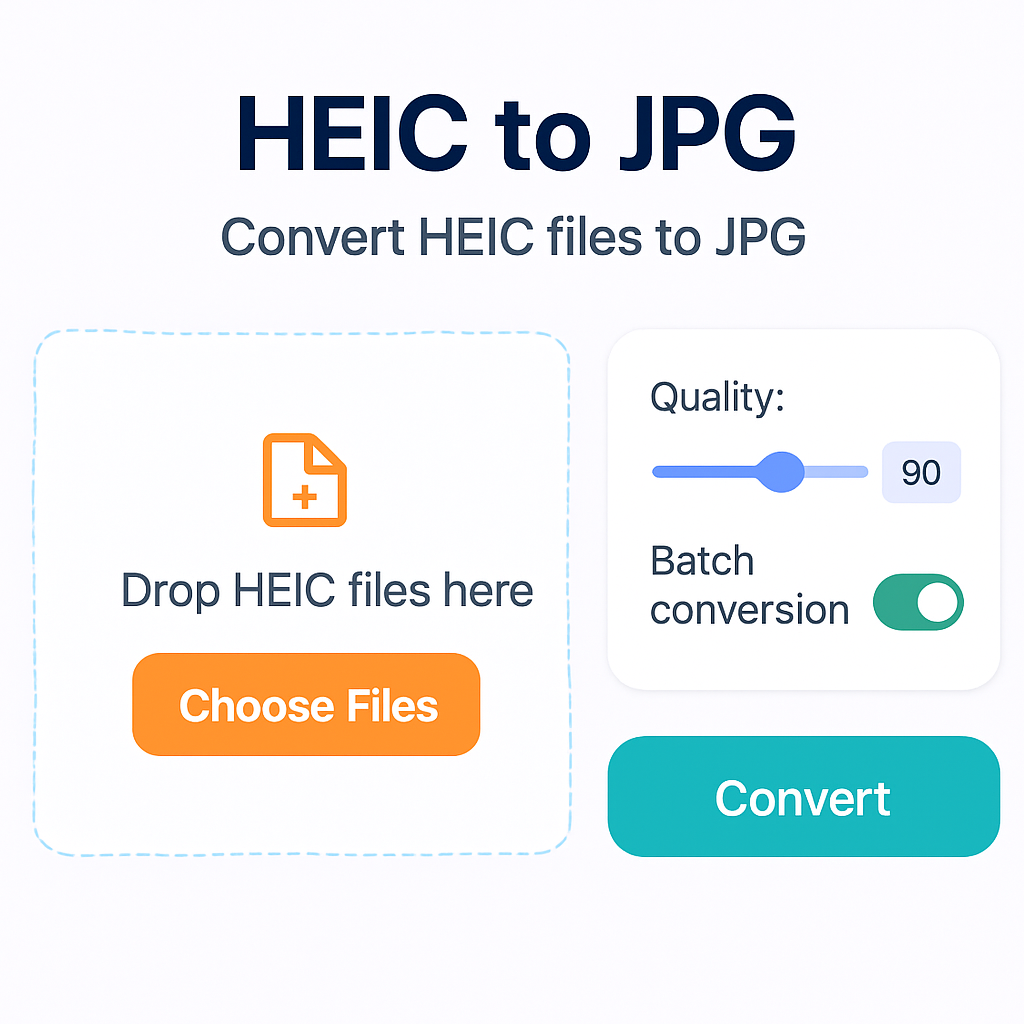
Choose the Right Tool: Use a reliable online converter like heic.me. It is free and doesn’t require any sign-up.
Check Settings: Before converting, look at the quality settings. Make sure to choose the highest quality option.
Batch Convert: If you have many photos, consider batch converting them. This saves time and keeps the quality consistent across all images.
Inspect the Result: After conversion, always check the JPG file. Make sure it meets your standards before sharing or saving.
Pros and Cons of HEIC and JPG
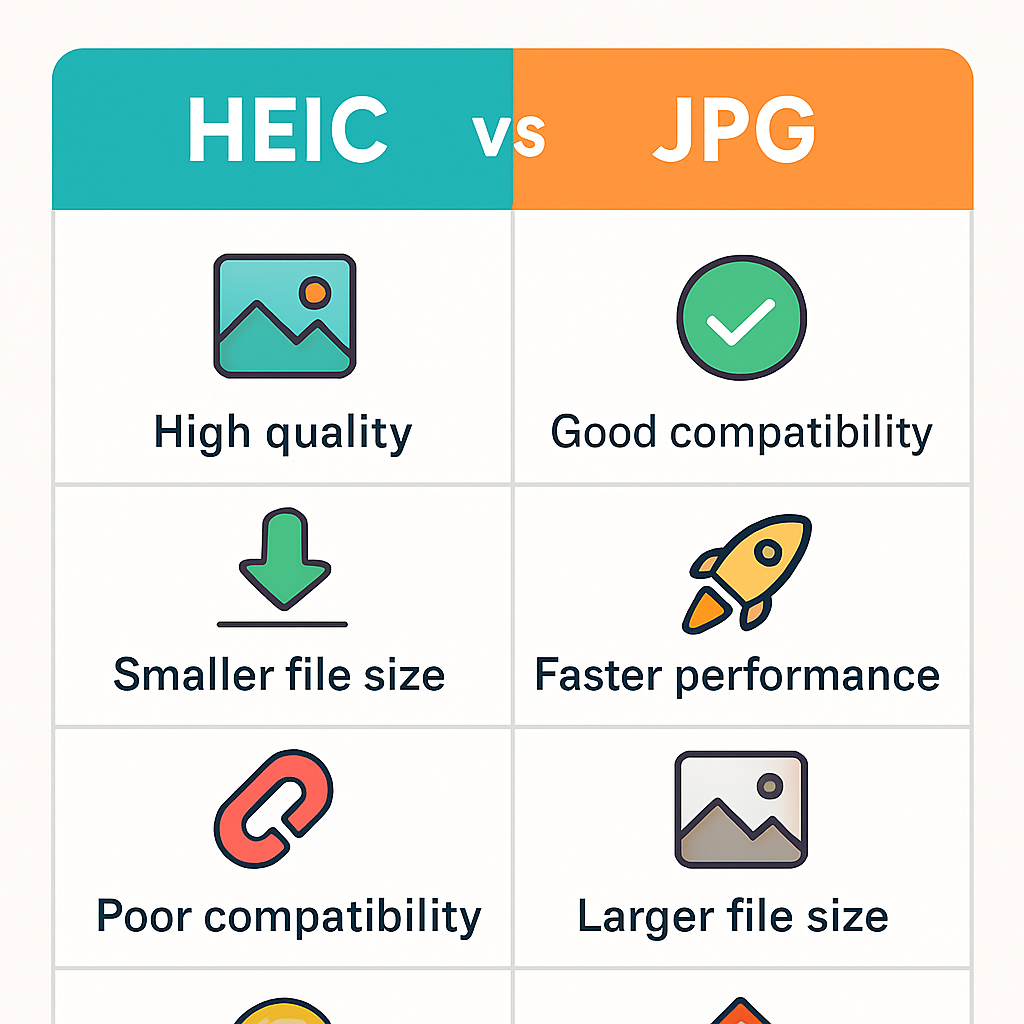
Understanding the strengths and weaknesses of HEIC and JPG can help you decide which format to use:
HEIC Pros:
Saves space without losing quality.
Supports more colors and features like live photos.
HEIC Cons:
Not all devices support HEIC files.
May require conversion for sharing.
JPG Pros:
Widely accepted and supported across all devices.
Easy to share on social media and websites.
JPG Cons:
Loses some quality due to compression.
Takes up more space than HEIC.
Can I Convert HEIC to JPG Without Losing Any Quality?
While you can convert HEIC to JPG, there is always a chance of losing some quality due to the nature of the formats. However, by using a quality converter and selecting high-quality settings, you can minimize any loss. It’s all about choosing the right tool and settings.
Is HEIC Better Than JPG?
HEIC is often considered better than JPG because it keeps more detail and takes up less space. If you're someone who takes a lot of pictures and wants the best quality, HEIC might be the way to go. However, if you need to share images quickly or work across different devices, JPG might be more convenient.
How Do I Open HEIC Files on My Computer?
You can open HEIC files on a computer by using special software or converters. If you're using Windows, you might need to install a codec. Alternatively, you can convert HEIC files to a more common format like JPG using a tool like heic.me that makes the process quick and simple.
Conclusion
In summary, converting HEIC to JPG can lead to some quality loss, but it doesn't have to. By choosing the right conversion tool and settings, you can keep your photos looking great. If you want to try converting your HEIC files easily, head over to heic.me. No installs, no sign-up — just drag, drop, and done!