Intro
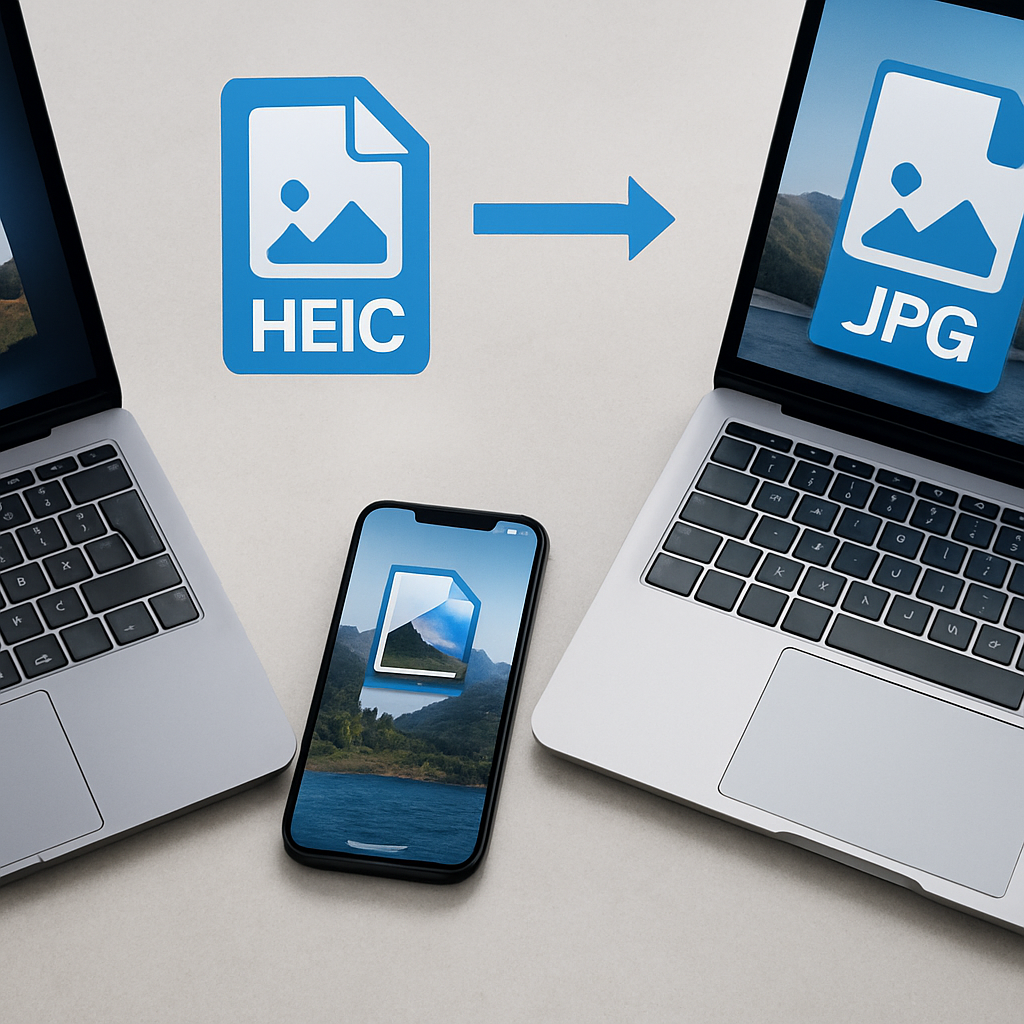
Have you ever taken a stunning photo on your iPhone only to find it saved as a HEIC file? This format is great for saving space, but it can be frustrating when you want to share your pictures. In this post, I’ll show you how to convert HEIC to JPG quickly and easily on Windows, Mac, iPhone, and online.
What is HEIC?
HEIC stands for High Efficiency Image Format. Think of it like a compact suitcase that holds your photos. It keeps them small without losing quality. This is why your iPhone uses it. But not all devices and apps can open HEIC files. That’s where converting to JPG comes in. JPG is like a universal key. Almost every device and app can use it.
Why Convert HEIC to JPG?
There are a few reasons you might want to convert HEIC to JPG:
- Compatibility: JPG files work on most devices and software.
- Sharing: It’s easier to share JPGs with friends or upload them online.
- Editing: Some editing tools prefer JPG files.
How to Convert HEIC to JPG
1. Converting on Windows
Windows 10 and 11 can open HEIC files if you have the right extension. Here’s how to convert:
- Open the HEIC file with the Photos app.
- Click on the three dots in the top right corner.
- Select Save as and choose JPG from the options.
If you want to convert many files at once, try using the HEIC to JPG tool on heic.me. Just drag and drop your files, and it’s done!
2. Converting on Mac
On a Mac, converting HEIC to JPG is simple:
- Open the HEIC file in the Preview app.
- Go to File and then Export.
- Choose JPG as the format and click Save.
For a batch conversion, use the free HEIC to JPG tool on heic.me. It can handle multiple images at once!
3. Converting on iPhone
If you want to convert HEIC files on your iPhone, here’s how:
- Open the Photos app and select the HEIC photo.
- Tap the Share icon.
- Select Save to Files and choose a location.
- Then, use a file conversion app or email it to yourself. Most email services will convert it to JPG automatically.
You can also use online tools like heic.me for quick conversions without downloading extra apps.
4. Converting Online
Using an online tool is one of the easiest ways to convert HEIC to JPG. Here’s how:
- Go to heic.me.
- Drag your HEIC files into the box.
- Select JPG as the output format.
- Click Convert, and that’s it!
This method is fast and doesn’t require any downloads or sign-ups. Plus, your files stay private.
FAQ Section
Can I convert HEIC to JPG for free?
Yes! There are many free tools online, like heic.me, that let you convert HEIC to JPG without any cost. Just upload your files and download the JPGs.
Will I lose quality when converting HEIC to JPG?
When you convert from HEIC to JPG, you might notice a slight loss in quality. HEIC keeps more detail. However, for most uses, JPG quality is good enough.
Are there any limits on file size or number of images?
Many online conversion tools have a limit on file size or the number of images you can convert at once. Heic.me allows batch conversion, so you can upload several files and convert them quickly.
What if I don’t want to convert my files?
If you prefer not to convert your HEIC files, you can also change your iPhone settings to save photos as JPG instead. Go to Settings > Camera > Formats and choose Most Compatible.
Conclusion
Converting HEIC to JPG is easy, whether you're on Windows, Mac, iPhone, or online. This helps you share and use your photos without hassle. Try the free HEIC to JPG tool at heic.me — no installs, no sign-up, just drag, drop, and done!